Network map overview
The overview is your starting point for everything you draw. It lists every network map of the active project – whatever kind – and from here you open an existing one or create a new one.
It is also where the two drawing surfaces of MyNetworkmap meet. You do not have to decide between them in advance: you click a map, and MyNetworkmap opens the surface that map belongs to.
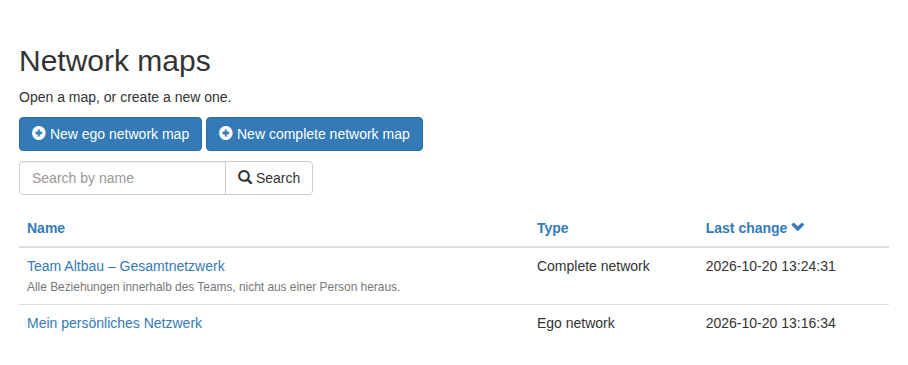
The table
| Column | Content |
|---|---|
| Name | The name of the map and, if there is one, its description below. A click opens it. |
| Type | Ego network, Complete network or Ego network (classic) |
| Last change | When something was last saved on that map |
Note: the list shows the maps of the active project. Switch projects through the project tile in the sidebar and the list switches with it. A map from another project cannot be opened from here.
Sorting
Each of the three column headings is a link. One click sorts the table by that column, a second click reverses the direction. A small arrow on the heading shows what is being sorted by, and which way.
| Column | Sorted by |
|---|---|
| Name | Alphabet, A→Z or Z→A |
| Type | Alphabet of the label, exactly as it reads in the column |
| Last change | Date, newest or oldest first |
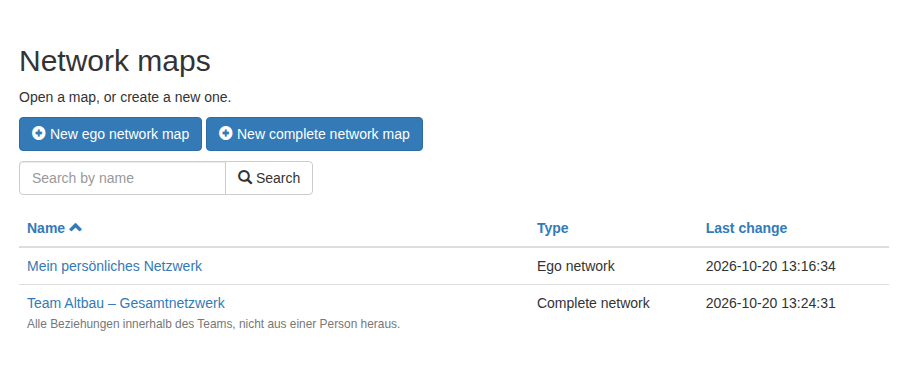
Note: the Type column is sorted by what you read, not by an internal code. In English Complete network therefore comes before Ego network, in German Egonetzwerk before Gesamtnetzwerk. The order depends on the language of the interface – and that is intended.
Without a choice of your own, the overview puts the most recently changed map on top. That is usually the one you want to carry on with.
Searching
Above the table there is a search box. Type part of a map name into it and click Search – the table then shows only the matches. Upper and lower case make no difference, and the term may sit anywhere inside the name.
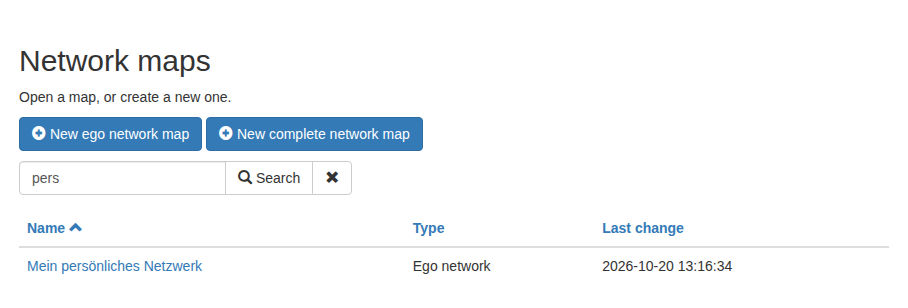
An ✕ next to the search button clears the search and brings back every map. The sorting stays as it was.
Only the name is searched. Description and type are not. A search for Team finds the map "Team Altbau", but not a map that merely mentions the word team in its description.
Note: if the search finds nothing, the message "No network map matches this search." appears. The search box stays in place so you can change the term or clear it.
Sorting and search are remembered
Both are kept – even if you open a map in between, move to another module, or sign in again tomorrow. MyNetworkmap remembers your choice per project and per user account: every project keeps its own setting, and your choice affects only you, not your colleagues.
If a map seems to be missing, look at the search box. Yesterday's search still applies today – the ✕ brings the full list back.
Creating a new map
Two buttons, two kinds of network map:
| Button | Creates | Continue in |
|---|---|---|
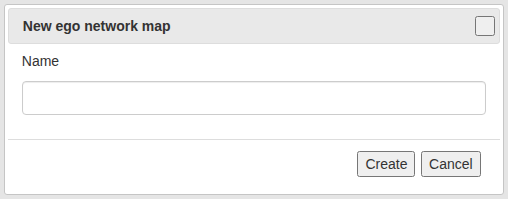
| New ego network map | A map thought from one person outwards | Ego network map |
| New complete network map | A map of all relations inside a group | Network map |
The ego map only needs a name. The complete network map also asks for a description and offers the option create the necessary attributes automatically – which should stay ticked, see Network map.
Once created, the map is open straight away.
The buttons only appear with write permission. With the role Read only you see the list and can look at every map, but cannot create one. More under roles in the project.
The two kinds of map
Both draw networks, both draw on the same actors and attributes of the project. They differ in the question they answer.
| Ego network map | Complete network map | |
|---|---|---|
| Point of view | From one person outwards: who belongs to my network? | On a group as a whole: who knows whom? |
| Centre | One fixed actor, the ego | None – all actors rank equally |
| Structure behind it | Concentric circles and sectors that assign attribute values | Open space, sectors optional |
| Arrangement | By hand; position carries meaning | By hand or computed (Kamada-Kawai) |
| Measures | Not in the interface | Centrality, density and more |
| Typical for | Interviews, counselling, personal networks | Teams, school classes, organisations |
Which one fits? Ask yourself whose network you are drawing. If it is the surroundings of one person, the ego map is right. If it is the relations within a group, the complete network map is.
Ego network (classic) marks older ego-centred maps created with the complete network surface. They remain usable there; new ego maps are created with New ego network map.
Moving back and forth
A project may hold both kinds, as many as you like. The way between them always leads through this page:
- Into a map: click its name in the overview. MyNetworkmap opens the matching surface – you do not have to think about it.
- Back to the overview: the All network maps button. It is in both surfaces; in the ego map at the top left of the header.
- To the other kind: click the other map in the overview.

The Network maps menu entry opens the map you used last, not the overview. That is convenient while you are working on a map – but when you want to see the list, All network maps is the way there.
Note: the remembered map is shared by both surfaces. If you have opened another map in a second browser tab, that one is the most recent – the first tab is then working on a map MyNetworkmap no longer regards as the current one. Reloading the page brings the two back together.