Actors
The Actors module is the workplace for everybody in your network. Here you create actors, maintain their attributes, manage the relations between them and prepare the data that later becomes visible on the network map.
The actor table replaces many separate forms: searching, filtering, editing, linking and deleting all happen in the table itself.
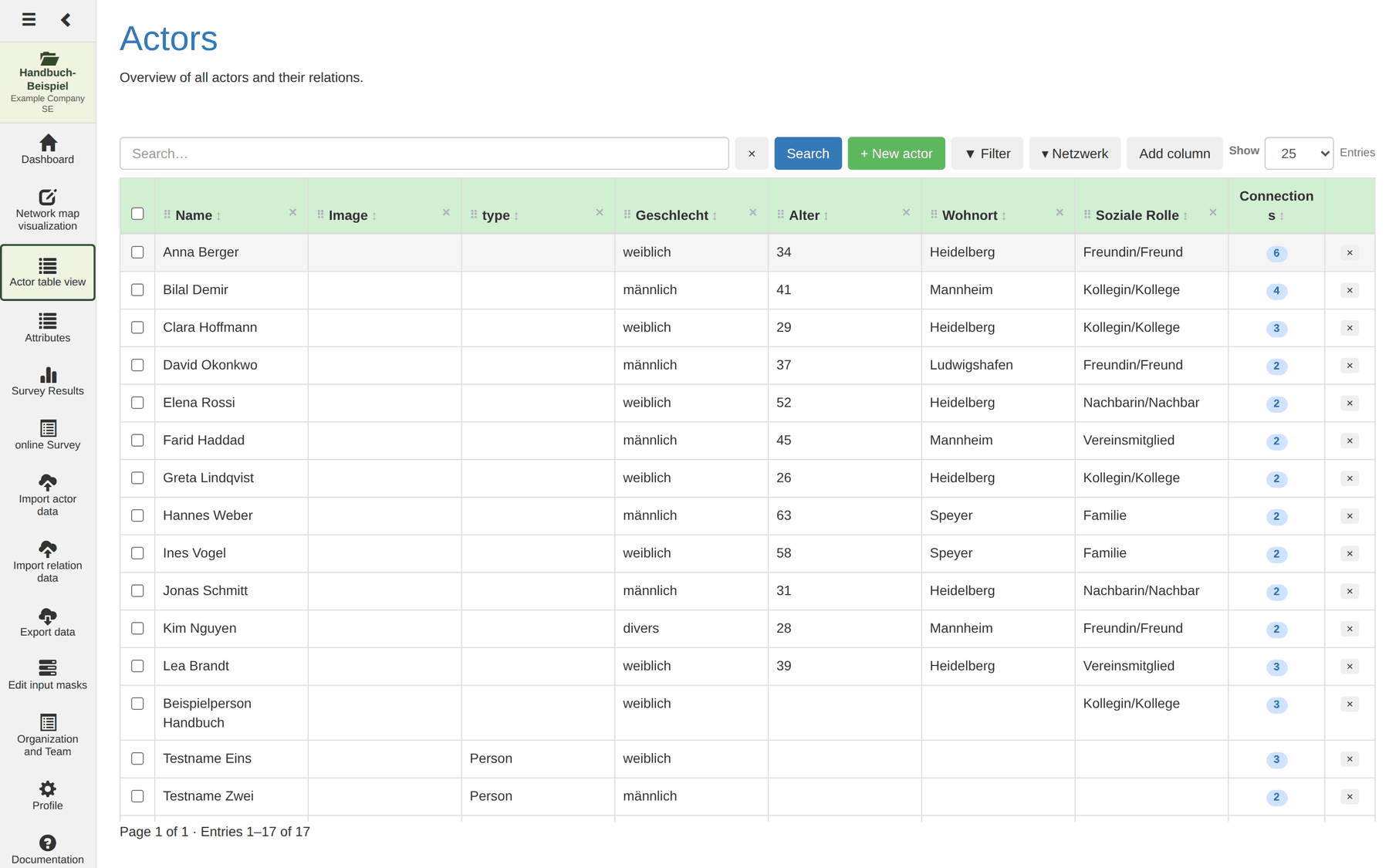
The illustrations in this chapter show the example project Handbuch-Beispiel
with twelve actors and the attributes Name, Geschlecht (gender), Alter
(age), Wohnort (place of residence) and Soziale Rolle (social role).
Note: the table only ever shows the actors of the active project, named at the top of the sidebar.
What you may do here depends on your role in the project: viewing, searching and filtering is open to all members. Changing values and creating actors and relations needs at least Survey, creating new attributes the role Editor.
Page layout
| Area | Function |
|---|---|
| Status message | Appears briefly after actions at the top |
| Network visualisation | Optional interactive graphic of the displayed actors |
| Toolbar | Search, buttons, column selection, page size |
| Filter rules | Expandable area for combinable conditions |
| Actor table | Paginated, sortable table with in-cell editing |
| Pagination | Page navigation and hit count |
Toolbar

Search
The search field searches actors by their attribute values. Run it with
Search or Enter; the × next to it resets it.
Tip: enter an actor's numeric ID and exactly that actor is shown. Clicking a node in the network visualisation does this automatically.
Creating an actor
+ New actor immediately creates an empty actor, which you then fill in the table.
This route is not meant for larger numbers. Twelve actors you type; a hundred you import. See Import.
Managing columns
Add column shows any attribute as a table column. The search field in the menu helps when there are many attributes.
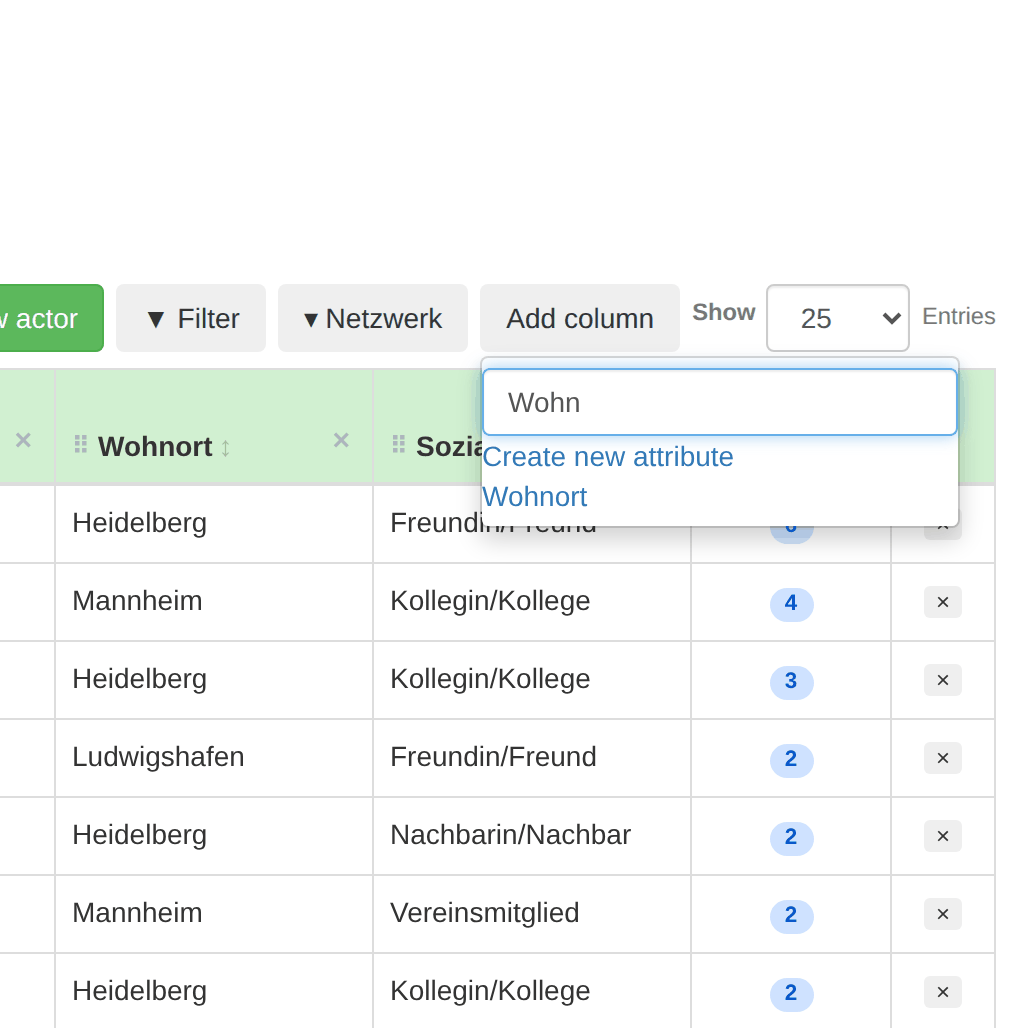
- Remove a column: click the small
×in the column heading. - Move a column: drag the handle
⠿in the column header. - Create a new attribute: at the end of the list; opens a dialog with a name and the choice between free text and predefined values.
Note: the column configuration – selection and order – is stored on the server per project and survives a reload.
Entries per page
On the right you set how many entries appear per page: 10, 25, 50, 100 or 500.
The table
Columns and sorting
| Column | Content |
|---|---|
| Checkbox | Multiple selection for actions across actors |
| Attribute columns | Freely configurable through Add column |
| Connected | Number of the actor's relations |
| Actions | Delete button (×) |
Clicking a column heading sorts ascending, a second click descending; the arrow (▲ / ▼) shows the direction. Connected is sortable too – so you can find the most and least connected actors.
Tip: after a centrality computation on the network map, measures such as
inDegree_nwk_…are available as ordinary attributes. Show them as a column and sort – that is the fastest route to a ranking.
Editing values in place
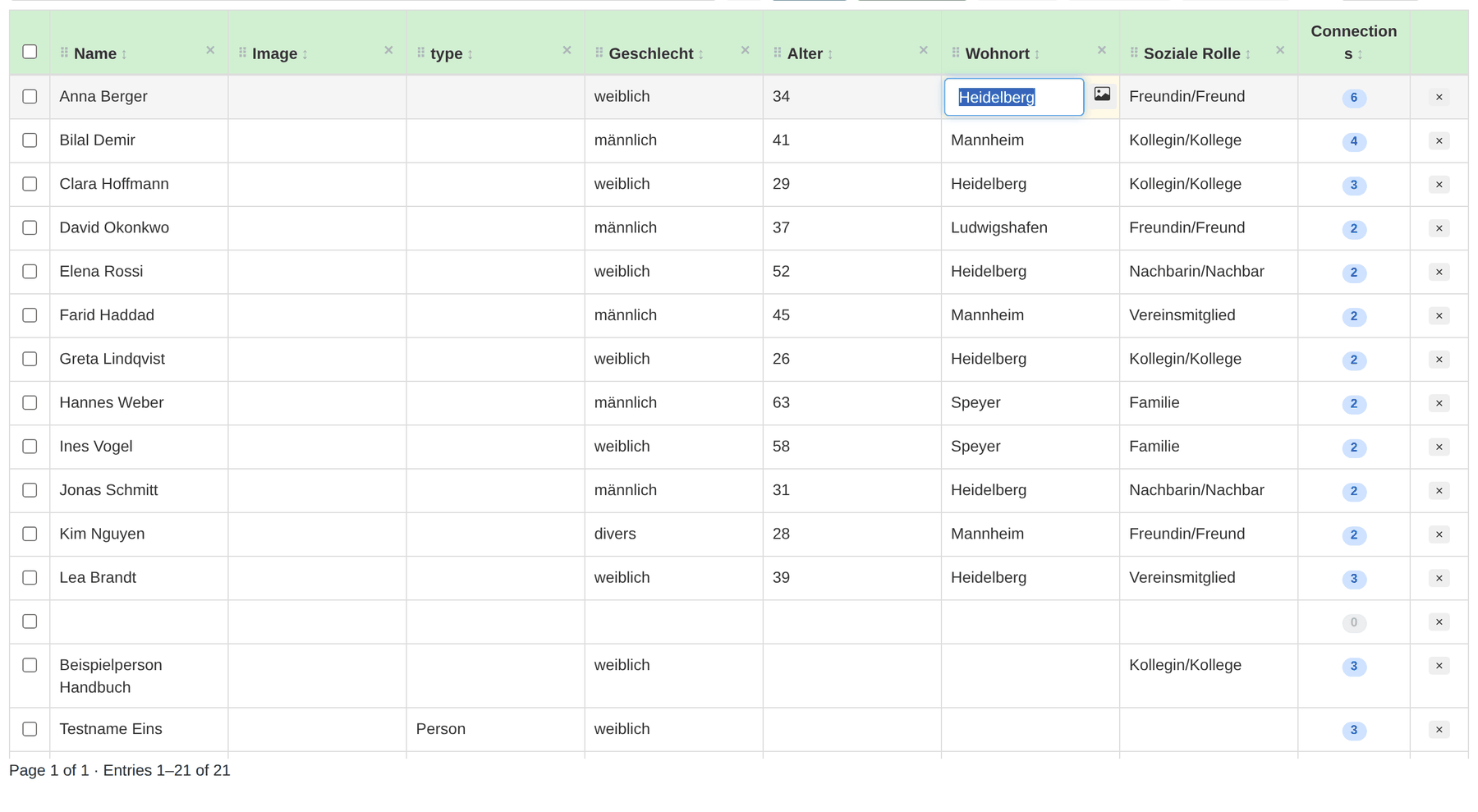
Free-text fields
- Click the cell – an input field opens with the current content.
- Type the value.
Enteror a click outside saves,Escapecancels.
Predefined values
If the attribute has predefined values, a dropdown appears instead. Choosing an entry saves immediately.
Image fields
When editing, a small image icon appears on the right, opening the image dialog (see Images).
Deleting an actor
The × on the right of a row deletes the actor after a confirmation.
Caution: deleting an actor also removes every relation they are part of. The action cannot be undone.
Deleting several actors
The checkboxes let you mark several actors; the box in the table header selects all visible ones. The red button Delete selected then appears.
Caution: the header box selects all entries of the current page. Set the page size to 500 before you mean “all” – otherwise you delete only the first 25.
Connections
The Connected column shows the number of relations. Clicking it expands the connections panel beneath the row; only one is open at a time. A 0 can be clicked too – the panel then opens with an empty list, and that is exactly how you create an actor's first relation.
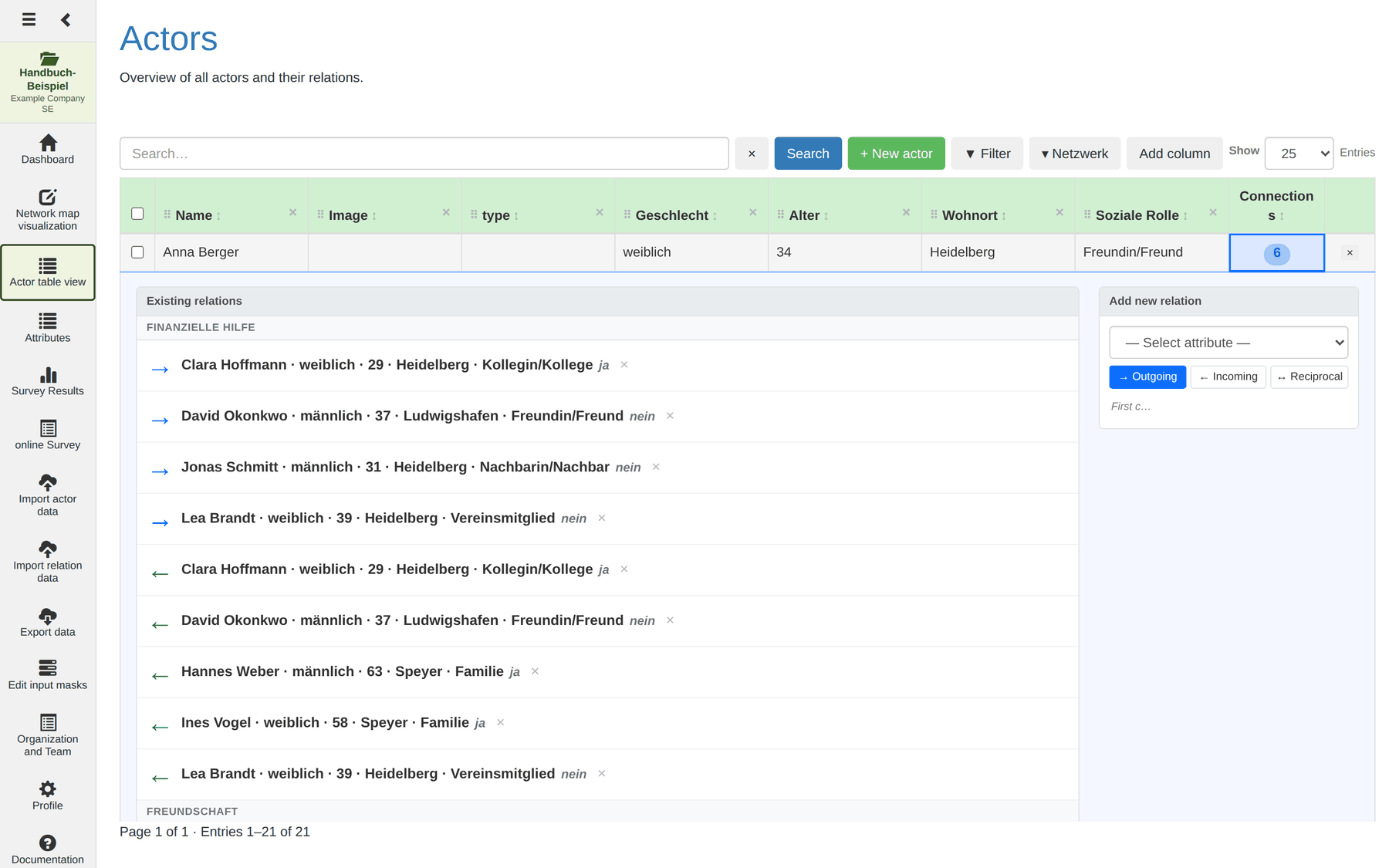
On the left, under Existing relations, are all connections grouped by attribute. On the right is the form Create new relation.
Direction types
| Symbol | Type | Meaning |
|---|---|---|
| → | Outgoing | The opened actor directs the relation at the other |
| ← | Incoming | The other directs it at the opened actor |
| ↔ | Reciprocal | The relation holds both ways |
Why this matters: on the network map, directed and mutual relations are drawn separately. Choosing reciprocal throughout, although the question was directed (“whom do you ask for advice?”), throws away half the information – including the in-degree, which measures standing.
Creating a relation
- Open the connections panel of the source actor.
- Select the relation attribute in the form on the right. Create new attribute lets you add one here.
- Enter or select a value.
- Set the direction.
- Only now does the search field for the target actor appear. Search and pick the actor.
- Click Create relation.
Until attribute, value and direction are complete, the form says First set attribute, value and direction, then search and link actors.
Tip: the form remembers the last combination used. For series entry you then only pick the next actor.
Deleting a relation
Each existing relation has a × on the right that removes it immediately.
Clicking the name of a linked actor copies it into the table's search field.
Filter rules
Filter opens the filter panel; a counter on the button shows the number of active rules.

- + Condition adds a filter row.
- Choose the attribute.
- Choose the operator.
- Enter or select the comparison value.
- Apply.
Individual rows can be disabled temporarily with the box on the left; the ×
removes the condition entirely.
Operators
| Operator | Meaning |
|---|---|
| = equals | Exact match |
| ≠ not equal | Everything except the value |
| > greater than | Comparison, free-text attributes only |
| < less than | Comparison, free-text attributes only |
Predefined values offer only equals and not equal. Image attributes cannot be filtered.
Example from the manual project:
Wohnort=HeidelbergANDGeschlecht=weiblichyields Anna Berger, Clara Hoffmann, Greta Lindqvist and Lea Brandt. With OR instead of AND it would be everybody from Heidelberg plus every woman.
AND / OR
- AND – an actor must satisfy all rules.
- OR – an actor must satisfy at least one rule.
Saving and resetting filters
Save stores the rules on the server; they are available again next time. Reset removes all rules.
Images
Image attributes appear as thumbnails; hovering enlarges them.
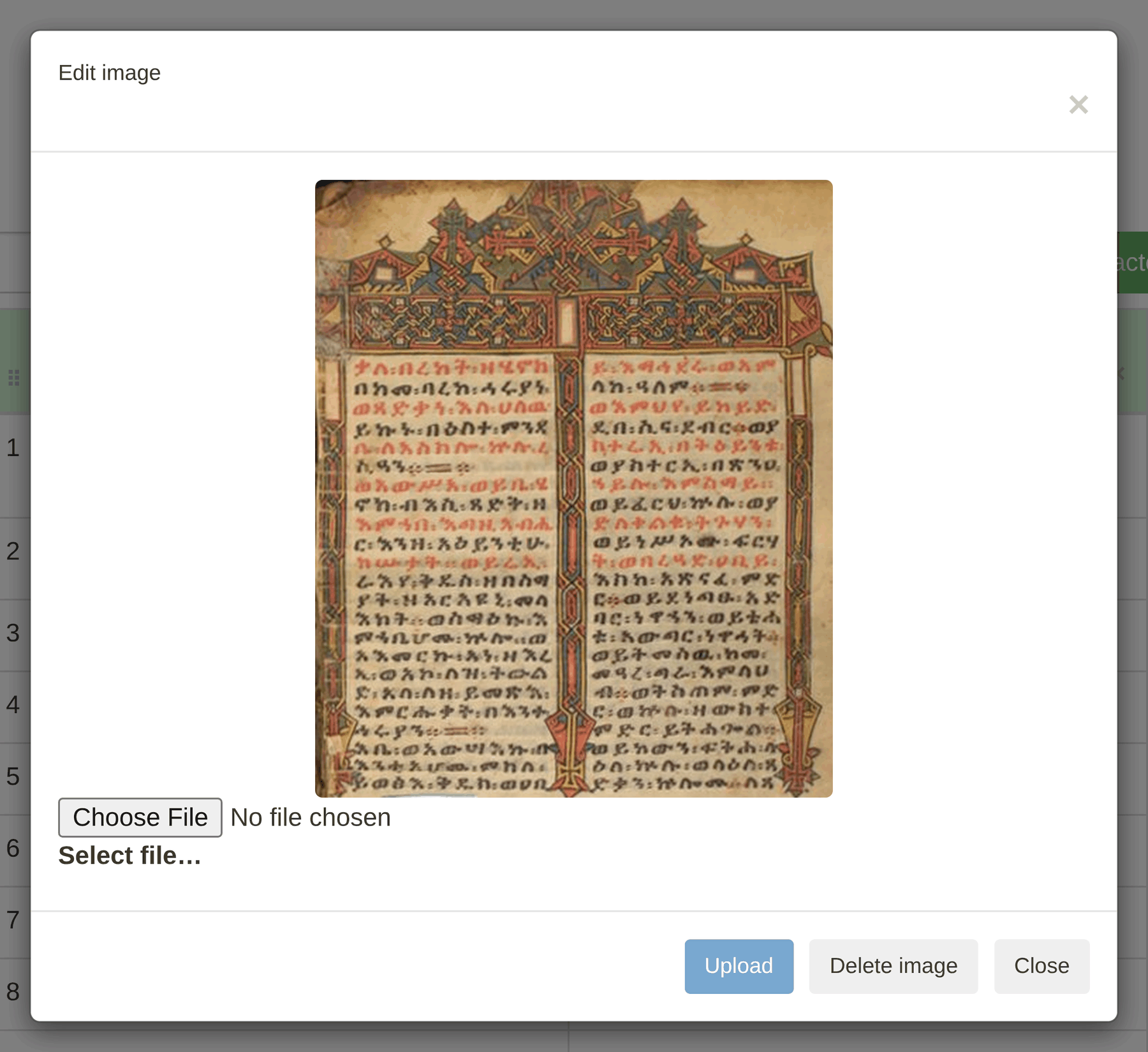
- Click the image cell – or the image icon when editing a text field.
- In the Edit image dialog click Choose file….
- Upload.
If an image exists, Delete image appears as well.
Network visualisation
Network shows an interactive graphic above the table of how the displayed actors are connected. Refresh reloads it.
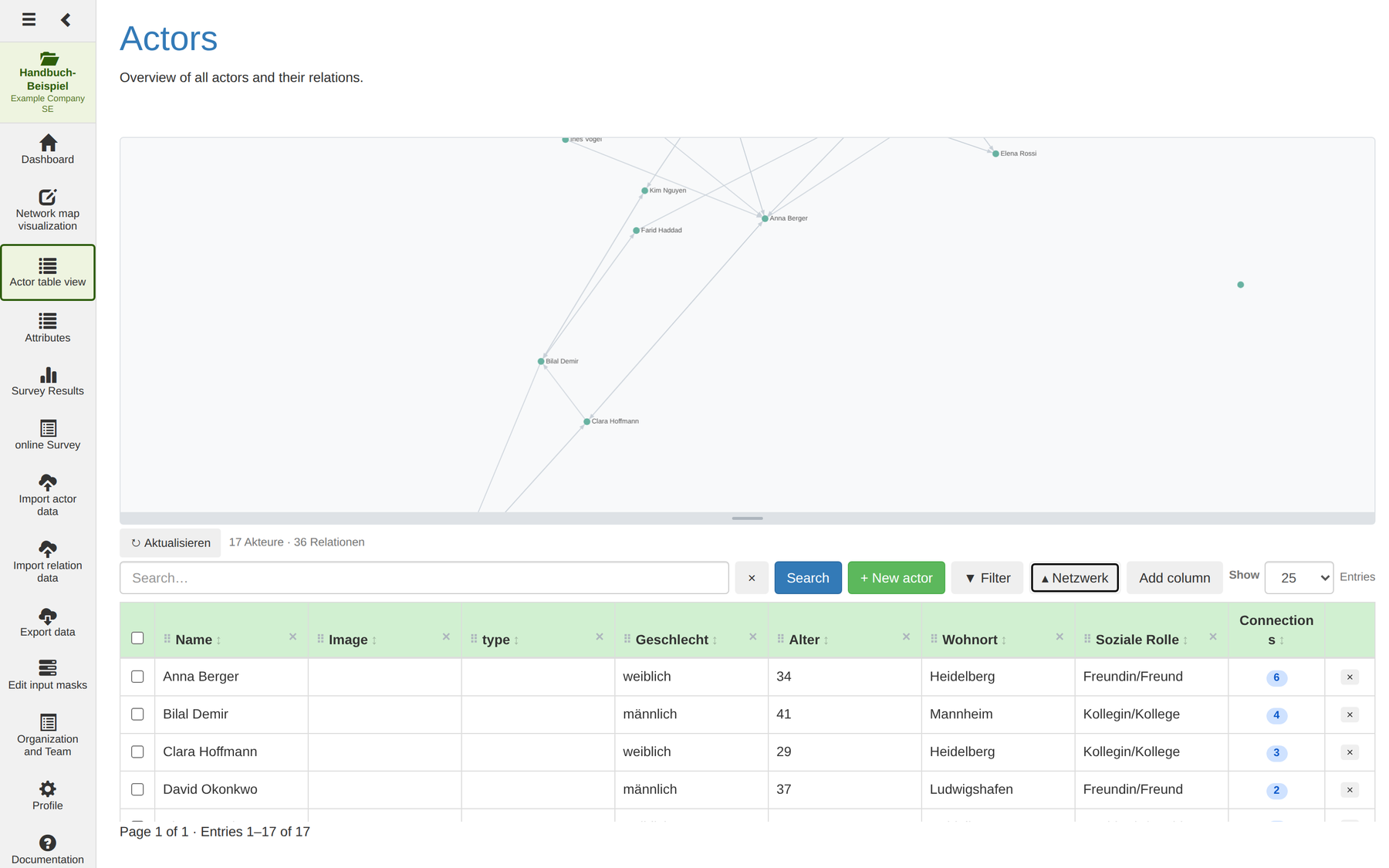
Which actors appear? The graphic mirrors the current table view exactly – it honours search, filters, sorting and the selected page, and updates automatically.
It additionally shows the direct neighbours of the table's actors, provided they also satisfy the filter rules. The search condition applies only to the table's actors, not to the neighbours. That way you see the surroundings of a selection without loosening the filter.
| Action | Mouse | Touch |
|---|---|---|
| Pan | Hold the left button and drag | Drag with one finger |
| Zoom | Mouse wheel | Pinch with two fingers |
| Highlight an actor | Hover over the node | – |
| Find an actor in the table | Click the node | Tap the node |
This graphic is not a network map. It is a quick check: did the relations arrive? Are there unexpectedly isolated actors? For styling, analysis and export switch to the network map.
Keyboard operation
| Key | Context | Action |
|---|---|---|
Tab |
Cell in display mode | To the next cell |
Shift+Tab |
Cell in display mode | To the previous cell |
↑ ↓ ← → |
Focused cell | Navigate |
Enter / Space |
Focused cell | Start editing |
Enter |
Input active | Save the value |
Tab |
Input active | Save and move on |
Escape |
Input active | Cancel without saving |
Tip for data entry: arrange the columns sensibly once, then type through row by row with
Tab. That is markedly faster than using the mouse.
Working together with the network map
The same table is also shown in the lower part of the network map, and the two are linked.
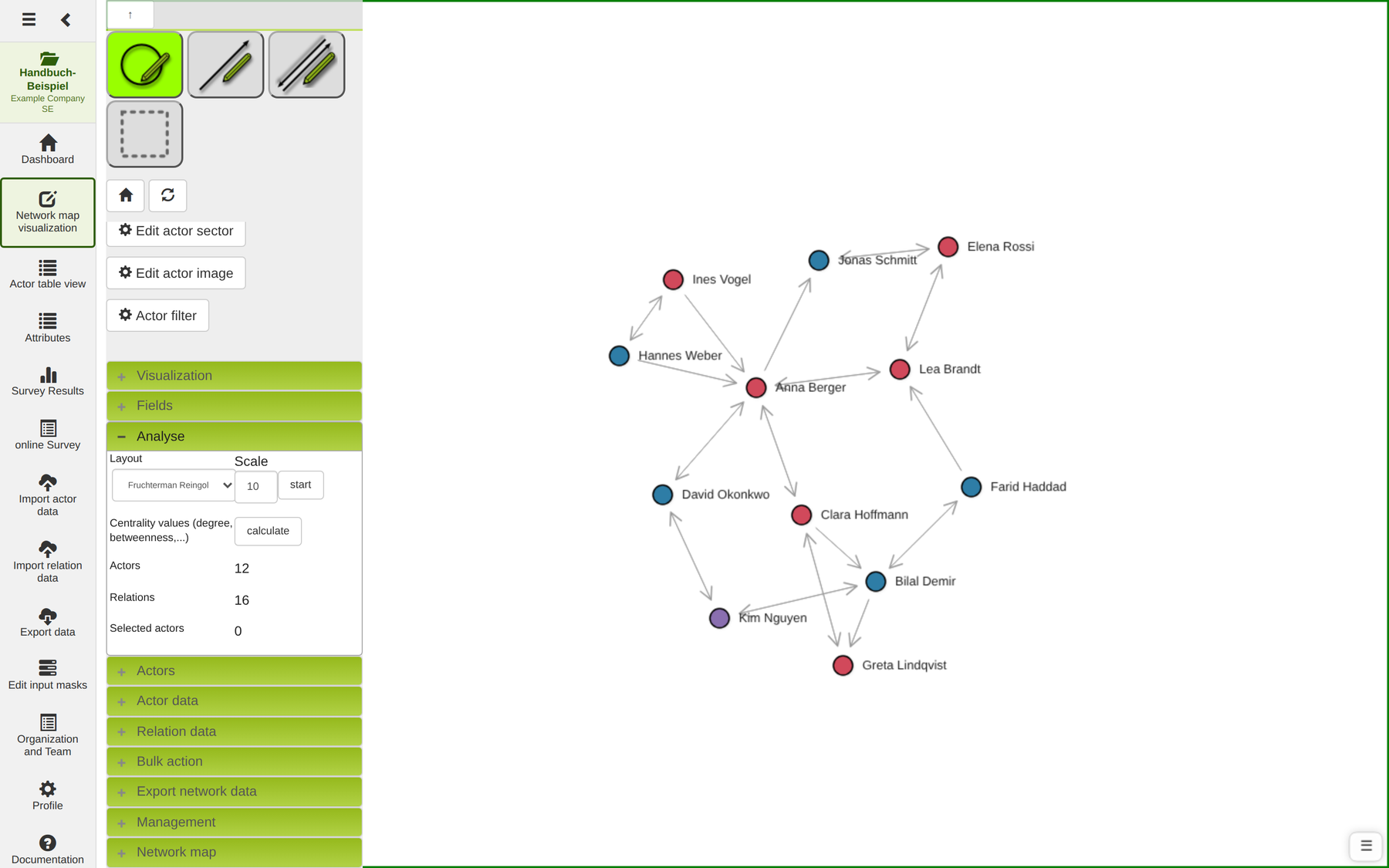
- Clicking a node filters the table to that actor.
- Several nodes can be clicked in turn or selected with a rubber band – the table shows them all.
- Clicking empty space or
Escapeclears the selection. - Clicking a table row highlights the actor on the map.
Tip: select a group on the map and maintain their attributes in the table afterwards – without setting filters by hand.
Note: the table inside the network map has its own column configuration, stored per network map.
Phones and tablets
On small screens the toolbar wraps, the search field takes the full width and all buttons are enlarged for touch.
The table scrolls horizontally; the table header is deliberately not fixed, so rows stay reachable even with long headings.
On a phone the connections panel stacks vertically: Create new relation on top, the existing relations below.