Profile
The Profile module is where you maintain your own user account: login name, email address, password and newsletter. It is also where you close the account if you no longer want to use MyNetworkmap.
The profile concerns you alone. Your organisation's data and your team members' accounts are managed under Organisation and team; who works in which project is settled in the Project module.
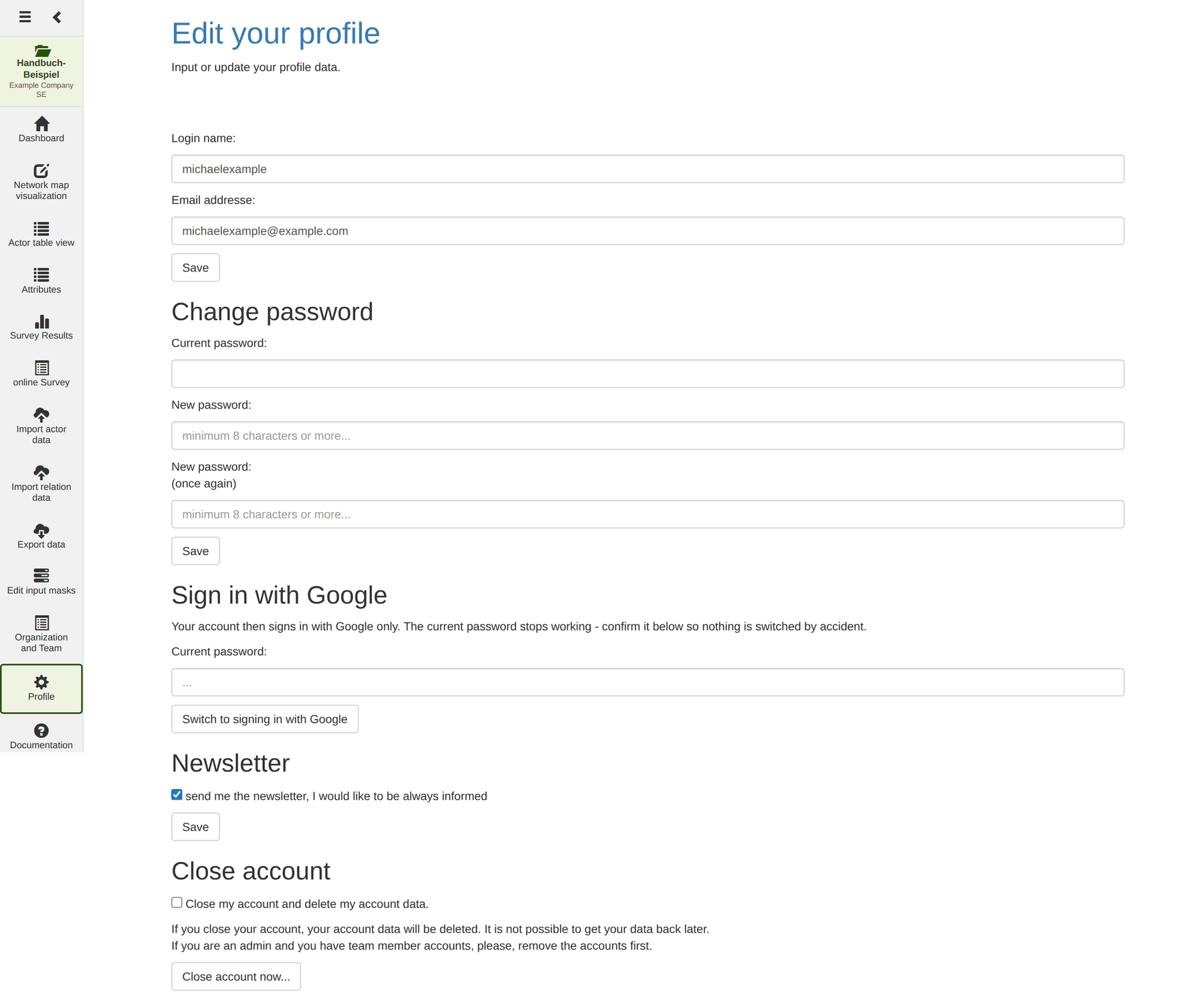
Login name and email address
The two topmost fields hold Login name and Email address. After a change click the Save button below them. The result — success or error — appears as a blue message at the top of the page.
| Message | Meaning |
|---|---|
| Data saved | The change was applied. |
| Data not saved. The login name or email address already in use. | Another account already uses this name or address. |
| Data not saved. No login name or email address. | Both fields have to be filled in. |
| Data not saved. Login name or email address too long. | Shorten the entry. |
Caution: You sign in with the login name. Change it and the new one applies from that moment on — make sure you remember it before saving.
Changing the password
Under Change password you fill in three fields:
- Current password — to confirm it really is you.
- New password — at least 8 characters.
- New password (once again) — the same entry as a check.
Clicking Save applies the new password; the three fields are cleared afterwards.
| Message | Meaning |
|---|---|
| Please, input your current password. | The first field is empty. |
| Wrong password input. | The current password entered is incorrect. |
| The two new password inputs must be identical. | The two lower fields differ. |
| New password length too short (must be 8 characters or more). | Choose a longer password. |
Note: If you have forgotten your password this page will not help — use the password reset on the sign-in page instead.
Signing in with Google
The Sign in with Google section switches your account over to signing in through a Google account. Enter your current password and click the button beneath it.
Caution: afterwards the account signs in only through Google; the previous password no longer applies. The prompt for the current password is there for exactly that reason – so the switch cannot happen by accident.
Newsletter
The checkbox under Newsletter controls whether you receive product news by email. The change only takes effect with the Save button below it.
Closing the account
Close account sits at the very bottom. To close it:
- Tick the checkbox Close my account and delete my account data.
- Click Close account now…
A message confirms that the account will be closed and deleted within the next few hours.
Caution: The account data is deleted and cannot be restored. If you administer further team accounts, please delete those team accounts first under Organisation and team.
Note: As long as the deletion has not been carried out it can still be cancelled — send a message to support for that.